23_09

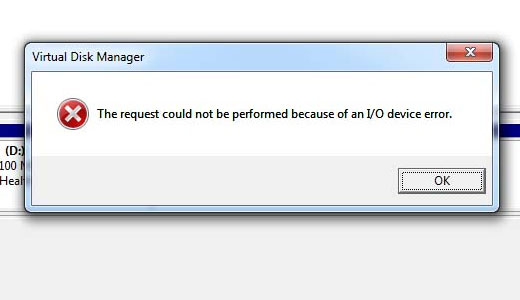
Device Error

 "Device error" is a broad term that can refer to a wide range of issues or errors related to computer hardware and peripherals. These errors can occur for various reasons, including hardware problems, driver issues, or software conflicts. To address a device error, you can follow these general troubleshooting steps:

  1. Restart Your Computer: Sometimes, a simple restart can resolve temporary device errors.

  2. Check Connections: Ensure that all cables and connections between the device (e.g., a printer, external hard drive, USB device) and your computer are secure. Loose or damaged cables can cause device errors.


  3. Update or Reinstall Drivers:

    • Outdated or incompatible device drivers can lead to errors. Visit the manufacturer's website for your device and download the latest drivers.
    • If you suspect that a recent driver update caused the error, you may need to roll back to a previous version.

  4. Use Windows Device Manager (For Windows):

    • Open Device Manager (you can search for it in the Windows search bar).
    • Look for the device that's causing the error.
    • Right-click on the device, select "Properties," and go to the "Driver" tab.
    • You can try updating the driver from here or uninstalling the driver and then reinstalling it.

  5. Check for Windows Updates:

    • Ensure that your operating system is up to date with the latest Windows updates. Sometimes, updates include fixes for hardware-related issues.

  6. Run Hardware Diagnostics:

    • Many computers come with built-in hardware diagnostic tools. You can access them during startup by pressing a specific key (e.g., F12) to perform a hardware scan.

  7. Disconnect Other Devices:

    • If you're experiencing issues with a particular device (e.g., a printer), try disconnecting other peripherals to see if there is a conflict.

  8. Check for Conflicting Software:

    • Sometimes, third-party software or conflicting drivers can cause device errors. Try disabling or uninstalling recently installed software to see if the issue persists.

  9. Check the Device Itself:

    • If the error is related to a hardware device (e.g., an external hard drive), test the device on another computer to determine if the issue is with the device itself.

  10. Check for Hardware Failures:

    • If you suspect a hardware issue with your computer (e.g., hard drive or RAM failure), consider running hardware diagnostics or seeking professional assistance.

  11. Check Error Messages:

    • Pay attention to any error messages or error codes you receive. These can provide valuable information that helps pinpoint the issue.

  12. Contact Manufacturer Support:

    • If you've tried the above steps and the device error persists, consider reaching out to the manufacturer's customer support for specific troubleshooting assistance.

It's important to identify which device is causing the error and then focus on troubleshooting that specific device or its associated drivers. If you're unsure about how to proceed or if the error persists despite your efforts, seeking professional help from a technician may be necessary to diagnose and resolve the issue

Missing DLL files

 Missing DLL (Dynamic Link Library) files can cause various errors and issues on a Windows computer. DLL files are essential system files that multiple programs can use to perform specific functions. If a DLL file is missing or corrupted, it can lead to software malfunctions or errors. Here are steps to address the issue of missing DLL files:

  1. Check the Recycle Bin:

    • Sometimes, DLL files can be accidentally deleted. Check your Recycle Bin to see if the missing DLL file was recently deleted. If found, restore it from the Recycle Bin.

  2. Reinstall the Program:

    • If the error message mentions a specific program or application, try reinstalling that program. Sometimes, during installation, DLL files associated with the program will be replaced.

  3. System File Checker (sfc):

    • Run the System File Checker tool to scan and repair missing or corrupted system files, including DLL files. Here's how:
      • Open Command Prompt as an administrator.
      • Type sfc /scannow and press Enter.
      • Allow the scan to complete. It may take some time.
      • Follow any on-screen prompts to repair or replace missing files.

  4. Windows Update:

    • Ensure that your Windows operating system is up to date. Sometimes, missing or outdated DLL files can be resolved by updating your OS.

  5. Check Other Locations:

    • If you have a backup of your system, you can try restoring the missing DLL file from there.
    • You can also search for the specific DLL file online and download it from a trusted source. However, exercise caution when downloading DLL files from the internet, as they can pose security risks if obtained from untrustworthy sources.

  6. Use the DISM Tool:

    • The Deployment Imaging Service and Management Tool (DISM) can also be used to repair the Windows image and replace missing or corrupted files. Here's how:

      • Open Command Prompt as an administrator.
      • Type DISM /Online /Cleanup-Image /RestoreHealth and press Enter.
      • Let the process complete. It may take some time.

  7. Perform a System Restore:

    • If the missing DLL issue started recently, you can perform a system restore to revert your system to a point in time when it was working correctly. This can restore missing DLL files to their previous state.

  8. Contact Software Support:

    • If the missing DLL file is associated with a specific software program, consider contacting the software's customer support for guidance on how to resolve the issue.

  9. Consider Professional Help:

    • If you're unable to resolve the issue on your own, or if the missing DLL files are causing significant problems, it may be advisable to seek assistance from a professional computer technician.

Remember to be cautious when downloading DLL files from the internet and only obtain them from trusted sources to avoid potential security risks.

Windows and MacOS Keyboard Shortcuts

Keyboard shortcuts are combinations of keys that, when pressed simultaneously or in a specific sequence, perform various actions or commands on a computer. They can help you work more efficiently and navigate through different software and operating systems. Here are some commonly used keyboard shortcuts for Windows and macOS:


Windows Keyboard Shortcuts:

  1. General Shortcuts:

    • Ctrl + C: Copy selected text or item.
    • Ctrl + X: Cut selected text or item.
    • Ctrl + V: Paste copied or cut text or item.
    • Ctrl + Z: Undo the last action.
    • Ctrl + Y: Redo the last undone action.
    • Ctrl + A: Select all items or text in a document or folder.
    • Ctrl + S: Save the current document or file.
    • Ctrl + N: Open a new window or document.
    • Ctrl + P: Print the current document.
    • Ctrl + F: Open the Find dialog to search for text.
    • Ctrl + H: Open the Replace dialog to replace text.
    • Alt + Tab: Switch between open applications.
    • Alt + F4: Close the active application or window.
    • Ctrl + Alt + Delete: Access the Task Manager to manage running applications.
  2. File Explorer Shortcuts:

    • Ctrl + E: Activate the search box in File Explorer.
    • Alt + Enter: View the properties of a selected item.
    • Alt + Up Arrow: Go up one folder level.
    • F2: Rename a selected item.
    • Shift + Delete: Permanently delete a selected item without moving it to the Recycle Bin.

macOS Keyboard Shortcuts:


  1. General Shortcuts:

    • Command (⌘) + C: Copy selected text or item.
    • Command (⌘) + X: Cut selected text or item.
    • Command (⌘) + V: Paste copied or cut text or item.
    • Command (⌘) + Z: Undo the last action.
    • Command (⌘) + Shift + Z or Command (⌘) + Y: Redo the last undone action.
    • Command (⌘) + A: Select all items or text in a document or folder.
    • Command (⌘) + S: Save the current document.
    • Command (⌘) + N: Open a new window or document.
    • Command (⌘) + P: Print the current document.
    • Command (⌘) + F: Open the Find dialog to search for text.
    • Command (⌘) + H: Hide the active application.
    • Command (⌘) + Q: Quit the active application.
    • Command (⌘) + Space: Open Spotlight for system-wide search.
  2. Finder Shortcuts:

    • Command (⌘) + Up Arrow: Go up one folder level.
    • Return: Rename a selected item.
    • Command (⌘) + Delete: Move a selected item to the Trash.
    • Command (⌘) + Shift + Delete: Empty the Trash.

These are just a few examples of keyboard shortcuts, and there are many more available for specific applications and tasks. Learning and using keyboard shortcuts can significantly improve your efficiency when working on a computer.